You publish a page, maybe even submit it to Google directly, and a week later a quick search still doesn’t turn it up. If you’re dealing with a Google not indexing website issue, it’s a frustrating spot to be in, especially when the content itself seems fine.
The good news is that not being indexed doesn’t automatically mean your SEO strategy has failed. Sometimes Google simply can’t crawl a page. Sometimes it’s been told not to index it, whether on purpose or by accident. And sometimes the page has been crawled just fine but wasn’t selected for the index for reasons that have nothing to do with a penalty.
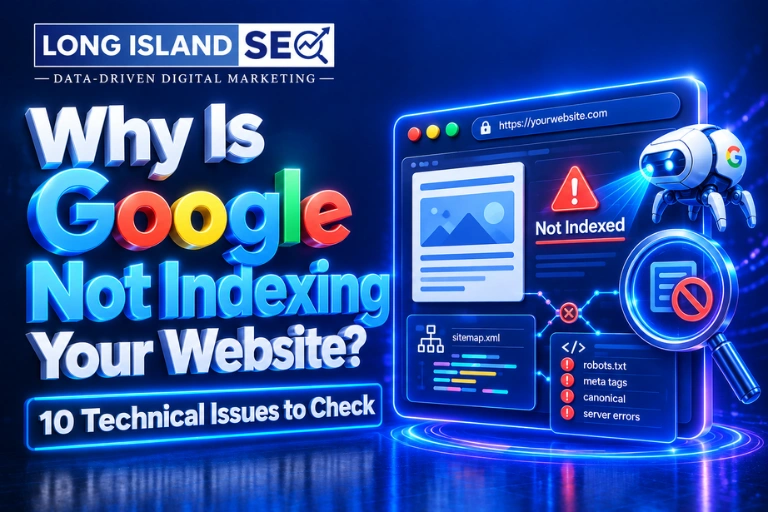
This article covers 10 technical issues worth checking before you assume something bigger is wrong.
How Do You Know If Google Has Indexed Your Website?
The most reliable way to check is Google Search Console’s URL Inspection tool, which shows the exact indexing status of a specific page directly from Google’s own data.
- Google Search Console: Under the URL Inspection tool, enter a specific URL to see whether it’s indexed, when it was last crawled, and any issues Google found.
- URL Inspection tool: This is the most accurate source, since it reflects Google’s actual records for that page rather than a general estimate.
- A site:yourdomain.com search: Typing this into Google gives a rough idea of what’s indexed, but it’s a loose, unofficial signal, not a complete or fully accurate report.
A site: search can be a useful first glance, but it shouldn’t be treated as a definitive audit. Search Console is the tool to rely on for anything you actually need to act on.
Why Is Google Not Indexing My Website?
There is no single reason why a page may not be indexed.
Common causes include:
- A noindex directive
- Incorrect robots.txt rules
- Server or crawl errors
- Sitemap problems
- Weak internal linking
- Canonicalization issues
- Duplicate or very similar pages
- Rendering or accessibility problems
- Redirect and URL issues
- Google choosing not to index a page
The important thing is to identify the actual cause instead of repeatedly requesting indexing without fixing the underlying problem.
10 Technical Issues That Can Prevent Google From Indexing Your Website
1. Your Page Has a noindex Directive
What it is: A noindex directive tells search engines not to include a page in their index, even if they’re able to crawl it.
Why it matters: This is one of the most common causes of “missing” pages, and it’s often unintentional, added by a CMS setting, a plugin, or a staging environment that never got updated before launch.
What to check: Look for a noindex tag in the meta robots tag in the page’s HTML head, or in the X-Robots-Tag within the HTTP response headers. Search Console’s URL Inspection tool will also flag this directly.
How to fix it: Remove the noindex tag from any page that should be indexed, then request indexing once the fix is live.
2. Your Robots.txt File Is Blocking Crawling
What it is: The robots.txt file tells search engines which parts of a site they’re allowed to crawl. Crawling and indexing are related but different: crawling is Google visiting a page, while indexing is Google storing it in search results.
Why it matters: An overly broad or incorrect rule in robots.txt can block Googlebot from reaching entire sections of a site, or key pages within it, without anyone noticing until traffic drops.
What to check: Review yourdomain.com/robots.txt directly, and check the “Crawled” data in Search Console to see if important pages are being blocked.
How to fix it: Update the disallow rules to allow crawling of important pages. Keep in mind that blocking a URL in robots.txt does not reliably remove it from Google’s index if it’s already there; use a noindex tag or removal tool for that instead.
3. Your Website Has Crawl or Server Errors
What it is: If Google’s crawler can’t successfully reach a page, it can’t index it, regardless of how good the content is.
Why it matters: Server-side problems like 5xx errors, timeouts, DNS issues, hosting outages, or intermittent server responses can all interrupt Google’s ability to access pages, sometimes without any visible sign to a human visitor.
What to check: Search Console’s crawl stats and error reports, server logs, and hosting or uptime monitoring tools.
How to fix it: Resolve the underlying server or hosting issue, confirm the page returns a proper 200 status consistently, and monitor for recurring errors.
4. Your XML Sitemap Is Missing, Incorrect, or Outdated
What it is: An XML sitemap is a file that lists a website’s important URLs, helping search engines discover pages more efficiently.
Why it matters: A sitemap with incorrect URLs, non-canonical URLs, redirected links, 404s, blocked pages, or outdated entries can send confusing or unreliable signals to Google.
What to check: Review the sitemap file directly and check the Sitemaps report in Search Console for errors or warnings.
How to fix it: Keep the sitemap current, limited to canonical, indexable URLs, and resubmit it after major structural changes. Submitting a sitemap does not guarantee indexing on its own; it simply improves discovery.
5. Your Important Pages Are Difficult to Discover Through Internal Links
What it is: Internal links help both users and search engines find pages and understand how they relate to the rest of the site.
Why it matters: Orphan pages (pages with no internal links pointing to them), weak internal linking, or pages buried several clicks deep in the site structure can all make discovery harder for Google.
What to check: Whether an important page can be reached through normal navigation or contextual links elsewhere on the site, not just through the sitemap.
How to fix it: Add relevant internal links from related, well-established pages, and make sure important pages are reachable within a reasonable number of clicks from the homepage.
6. Your Pages Have Canonicalization Problems
What it is: A canonical tag tells Google which version of a page is the “main” one when similar or duplicate versions exist.
Why it matters: An incorrect canonical URL, a canonical pointing to a different page entirely, or conflicting canonical signals across a site can lead Google to index a different URL than the one you intended, or skip indexing altogether.
What to check: The canonical tag in a page’s source code, and the “Google-selected canonical” field in Search Console’s URL Inspection tool, which shows whether Google agrees with your chosen canonical.
How to fix it: Make sure canonical tags point to the correct, intended URL, and resolve any conflicting signals from redirects or internal links pointing elsewhere.
7. Your Website Contains Duplicate or Very Similar Pages
What it is: Duplicate content happens when multiple URLs show the same or very similar content, which complicates Google’s decision about which version to index.
Why it matters: Common sources include parameter-based URLs (like tracking or filter parameters), near-identical location pages, or duplicate product and service pages built from the same template.
What to check: Search for near-duplicate content across similar page templates and review whether URL parameters are creating multiple versions of the same page.
How to fix it: Consolidate near-duplicate pages where possible, use canonical tags to indicate the preferred version, and differentiate genuinely similar pages with unique, specific content. Duplicate content doesn’t automatically trigger a penalty, but it can make Google’s URL selection more complicated than it needs to be.
8. Your Website Has Poor Mobile or Technical Accessibility
What it is: Google needs to be able to access and properly render a page’s content to evaluate and index it.
Why it matters: Mobile usability issues, content that depends heavily on JavaScript to load, or resources (like scripts or stylesheets) that Google can’t access can all interfere with how a page is rendered and understood.
What to check: Search Console’s mobile usability report and the URL Inspection tool’s rendered screenshot, which shows what Google actually sees when it loads the page.
How to fix it: Fix mobile usability errors, ensure critical content doesn’t rely solely on JavaScript to appear, and confirm that necessary resources aren’t blocked from crawling.
9. Your Website Has Redirect or URL Problems
What it is: Redirects send visitors and search engines from one URL to another, and errors in how they’re set up can interfere with crawling.
Why it matters: Redirect chains, redirect loops, incorrect 301 redirects, broken redirects, and inconsistencies between HTTP/HTTPS or www/non-www versions of a site can all prevent Google from reaching the intended page efficiently.
What to check: Test key URLs directly to confirm they resolve to the correct final destination in as few hops as possible, and check for consistency across the site’s URL structure.
How to fix it: Simplify redirect chains into a single, direct redirect, fix loops, and standardize the site on one consistent URL format.
10. Google Has Not Yet Selected the Page for Indexing
What it is: This is an important distinction: Google discovering or even crawling a URL does not guarantee it will be indexed.
Why it matters: Google evaluates whether a page is worth adding to its index based on signals like uniqueness, overall page value, internal linking strength, and how new the page is. A page can be fully crawlable and still not selected.
What to check: Search Console will often show a status like “Crawled – currently not indexed” or “Discovered – currently not indexed” for pages in this situation.
How to fix it: Strengthen the page’s content and internal linking, make sure it isn’t near-duplicate to other pages on the site, and give it time. There’s no single rule that guarantees indexing, since Google weighs these signals together as part of broader site quality.
How to Troubleshoot an Indexing Problem Step by Step
When a specific page isn’t showing up, working through these steps in order tends to be more effective than guessing at a fix:
Step 1: Check the URL in Google Search Console using the URL Inspection tool.
Step 2: Review the reported indexing status and any specific issue Google flags.
Step 3: Check for a noindex directive in the meta tag or HTTP header.
Step 4: Review robots.txt to confirm the page and its resources aren’t blocked.
Step 5: Check the canonical tag to see if it points to the intended URL.
Step 6: Review redirects and HTTP status codes for the URL.
Step 7: Check internal links to confirm the page is reachable through normal navigation.
Step 8: Review the XML sitemap to confirm the URL is listed correctly.
Step 9: Check for server and crawl errors that might be interfering with access.
Step 10: Request indexing through Search Console after the underlying issue has been fixed.
That last step matters: requesting indexing should generally come after fixing the actual problem, not as a substitute for troubleshooting it. Repeatedly requesting indexing on a page with an unresolved technical issue rarely changes the outcome.
Why Is Google Search Console Important for Indexing Issues?
Google Search Console is important because it’s the most direct line of communication between a website and Google about how that site is being crawled and indexed. Rather than guessing, it shows what Google is actually seeing.
Beyond the URL Inspection tool, Search Console provides visibility into indexing status across the site, crawl issues and errors, sitemap submission and processing, page-level indexing signals, and overall search performance data like impressions and clicks. Used together, these reports usually point toward the specific cause of an indexing problem rather than leaving it a mystery.
When Should You Be Concerned About a Page Not Being Indexed?
A short delay after publishing is usually normal and not something to worry about. Ongoing or widespread indexing problems are a different story and often worth a closer look.
Situations that are typically normal:
- A recently published page that Google hasn’t discovered yet
- A new page still waiting in the crawl queue
- A minor, short-term indexing delay
Situations worth paying closer attention to:
- An important page that remains unindexed well after publishing
- Multiple important URLs affected at the same time
- Search Console reporting technical errors tied to indexing
- Previously indexed pages that suddenly disappear from the index
- Large sections of a website that can’t be crawled at all
If any of the situations in that second list sound familiar, it’s often a sign that a deeper technical review would be more productive than continuing to troubleshoot page by page.
Frequently Asked Questions About Google Indexing
-
Why is Google not indexing my website?
Usually it’s due to a noindex directive, a robots.txt block, crawl or server errors, or Google simply not yet selecting the page based on quality and relevance signals. Checking Search Console’s URL Inspection tool is the fastest way to identify the specific cause.
-
How do I check if Google has indexed my website?
The most reliable method is Google Search Console’s URL Inspection tool, which shows the exact status for a specific page directly from Google’s data.
-
How long does Google take to index a new page?
It varies widely, from a few hours to several weeks, depending on how often Google crawls the site, the site’s overall authority, and how easily the page can be discovered through internal links or the sitemap.
-
Does robots.txt prevent Google from indexing a page?
Robots.txt primarily prevents crawling, not indexing directly. A blocked page can sometimes still appear in search results without visible content if other signals point to it, which is why noindex tags are the more reliable tool for keeping a page out of the index.
-
What does “Crawled – currently not indexed” mean?
It means Google successfully accessed the page but decided not to add it to the index yet, often due to content quality, similarity to other pages, or weak internal signals.
-
What does “Discovered – currently not indexed” mean?
It means Google knows the URL exists but hasn’t crawled it yet, often because of crawl budget prioritization or the page appearing low-priority based on current signals.
-
Should I request indexing after fixing an SEO issue?
Yes, requesting indexing after a genuine fix can prompt a faster recrawl, but it should follow the fix, not replace the troubleshooting process itself.
Final Checklist: Is Your Website Ready to Be Indexed?
✔️ Important pages are not marked noindex
✔️ Robots.txt does not block important resources or pages
✔️ Pages return the correct HTTP status (200, not a redirect or error)
✔️ XML sitemap is accurate and up to date
✔️ Important pages have internal links pointing to them
✔️ Canonical tags point to the correct, intended URL
✔️ Redirects work properly, without loops or unnecessary chains
✔️ Important content is accessible to search engines, including on mobile
✔️ Duplicate URLs are properly handled with canonicals or consolidation
✔️ Google Search Console shows no major indexing problems
Need Help Fixing Technical SEO and Indexing Issues?
Working through these issues one at a time can resolve a lot of indexing problems, but persistent issues affecting multiple pages, or an entire website, often point to something more structural that’s worth a deeper look. That kind of diagnostic work is part of what technical SEO covers within Long Island SEO’s broader SEO services, which includes auditing crawlability, indexing, and site structure alongside the rest of an SEO strategy. If you’re not sure whether what you’re seeing is a quick fix or a bigger issue, reaching out for a free consultation is a reasonable way to get a second opinion before spending more time guessing.